Microsoft 365
Connect Outlook and Microsoft Teams so Nektar captures email and meeting engagement without any change to how your reps work — and writes it natively into Salesforce.
Connection
Your Microsoft 365 administrator should authorise the Nektar app for your organization. The administrator may also follow the steps below to restrict Nektar to specific users.
Provide the email address of your Microsoft 365 administrator to start the authorization process.
Restrict Nektar to specific users
You must have admin privileges to your Microsoft 365 organization to do this.
-
Create a “Mail-enabled security” group in Microsoft Admin Centre. Note the group’s email address.
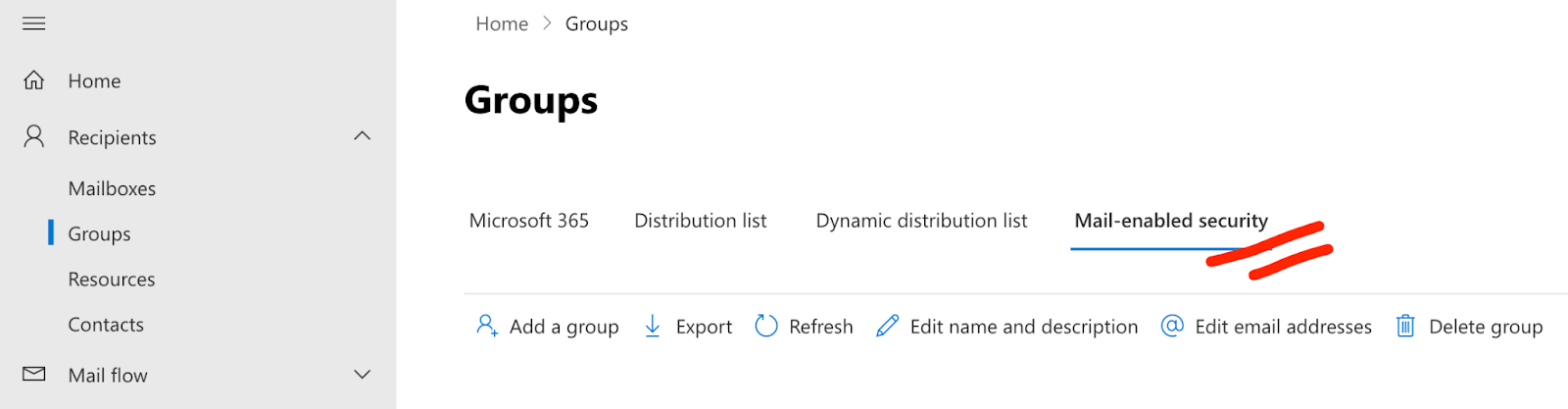
- Add the users you want Nektar to access as the members of that group. Ensure that the admin is different from all the members.
- On your Windows PC, launch PowerShell.
-
Login to ExchangeOnline with your admin credentials.
Connect-ExchangeOnline -UserPrincipalName <your-email-address> -
Add an access policy restricting the Nektar app to the group you created.
New-ApplicationAccessPolicy -AppId 5ec97ac5-1665-4dff-8357-43d284a0b3a5 -PolicyScopeGroupId <group-email-address> -AccessRight RestrictAccess -Description "Nektar access policy"
Access to Teams
- On your Windows PC, launch PowerShell.
-
Login to ExchangeOnline with your admin credentials.
Connect-ExchangeOnline -UserPrincipalName <your-email-address> -
Connect to Teams.
Connect-MicrosoftTeams -
Add an access policy to grant Nektar access to Teams.
New-CsApplicationAccessPolicy -Identity Policy-To-Access-Meetings-Application-Access -AppIds "5ec97ac5-1665-4dff-8357-43d284a0b3a5" -Description "Access meeting on behalf of user"
Grant-CsApplicationAccessPolicy -PolicyName Policy-To-Access-Meetings-Application-Access -Global
OAuth scopes
This is under-the-hood technical detail that’s not necessary for using Nektar.
Scopes control what actions Nektar may take. Nektar requires the following OAuth scopes to operate correctly.
| Scope | Purpose |
|---|---|
| Read user mail | Allows the app to read email in user mailboxes |
| Maintain access to data you have given it access to | Gives the app access to refresh tokens |
| Read user and shared calendars | Allows the app to read events in all calendars that the user can access, including delegate and shared calendars. |
| Read user and shared mail | Allows the app to read mail that the user can access, including the user’s own and shared mail. |
| Sign in and read user profile | Allows users to sign-in to the app, and allows the app to read the profile of signed-in users. It also allows the app to read basic company information of signed-in users. |
| Read user calendars | Allows the app to read events in user calendars. |
| Read all users’ basic profiles | Allows the app to read a basic set of profile properties of other users in your organization on behalf of the signed-in user. This includes display name, first and last name, email address, open extensions and photo. Also allows the app to read the full profile of the signed-in user. |
| Read basic mail in all mailboxes | Allows the app to read basic mail properties in all mailboxes without a signed-in user. Includes all properties except body, previewBody, attachments and any extended properties. |
| Read all users’ full profiles | Allows the app to read the full set of profile properties, reports, and managers of other users in your organization, on behalf of the signed-in user. |
| Read mail in all mailboxes | Allows the app to read mail in all mailboxes without a signed-in user. |
| Read calendars in all mailboxes | Allows the app to read events of all calendars without a signed-in user. |
Sync
Nektar’s Microsoft 365 sync system reads email messages and calendar events every 10–15 minutes, and the list of users on your workspace every 24 hours. You must enable sync for individual MS365 users in the Users section.
The sync table displays:
- the time the most recent message or event was synced
- a sync health icon that can be clicked for more information
- toggles to enable or disable sync globally
Sync health icons may indicate the following states:
 |
Disabled | Can be enabled on the same screen |
|---|---|---|
 |
Not started | Disabled globally, or pending approval |
 |
In progress | Actively syncing; some data is remaining |
 |
Completed | Everything synced; watching for new data |
 |
Delayed | Sync has not run in the last 30 minutes |
 |
Stalled | Stopped due to error or hasn’t run in 2 hours |
Properties synced
| Email messages | Calendar events |
|---|---|
|
|
| Attachments are not synced | Attachments are not synced |
APIs used
This is under-the-hood technical detail that’s not necessary for using Nektar.
Nektar uses the Microsoft Graph API.