Installing Nektar from Marketplace
Step-by-step instructions for Google Workspace administrators to install Nektar for Gmail, Google Calendar and Google Meet.

Follow these simple steps to install Nektar for Gmail, Google Calendar and Google Meet from the Google Marketplace.
You must either be signed in as Google admin or have permission to install and give access to apps from Google Marketplace.
Step 1: Access the Marketplace
Click on the following link to visit the Nektar app page on Google Marketplace.
Step 2: Select “Admin Install”
On the app page, click the “Admin Install” button.
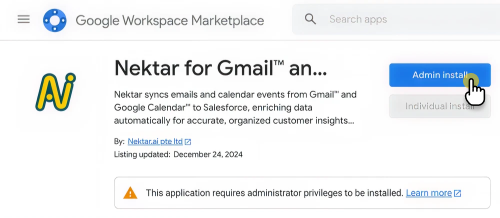
Step 3: Click “Continue”
A pop-up will appear to confirm the installation. Click “Continue” to proceed.
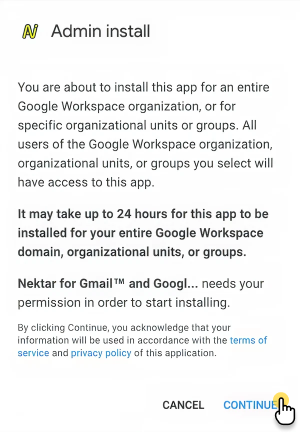
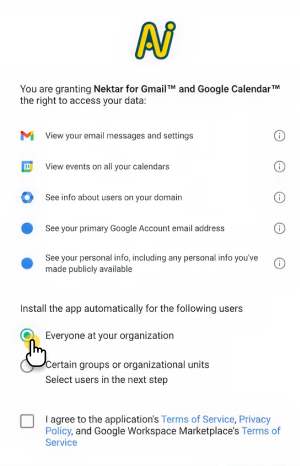
Step 4: Choose Installation Options
You will be prompted to select one of the following options:
Option 1: “Everyone at your organization”
- Select this option to grant access to all users in your organization.
- No additional steps are required.
Option 2: “Certain Groups or Organisational units”
- Select this option to limit access to specific groups or organisational units.
- See more details on how to create groups or organisational units.
- Important: For this to work, ensure that the Google administrator is part of the selected group or organisational unit.