Data controls
Configure screening rules, special domains, and write rules to precisely control what Nektar captures and syncs to Salesforce.

You can use these to restrict which of your organization’s emails and events are processed by Nektar. There are three kinds of controls:
Screening rules
Nektar screens out emails sent by automated systems and email addresses that don’t belong to a specific person (such as support@… and sales@…).
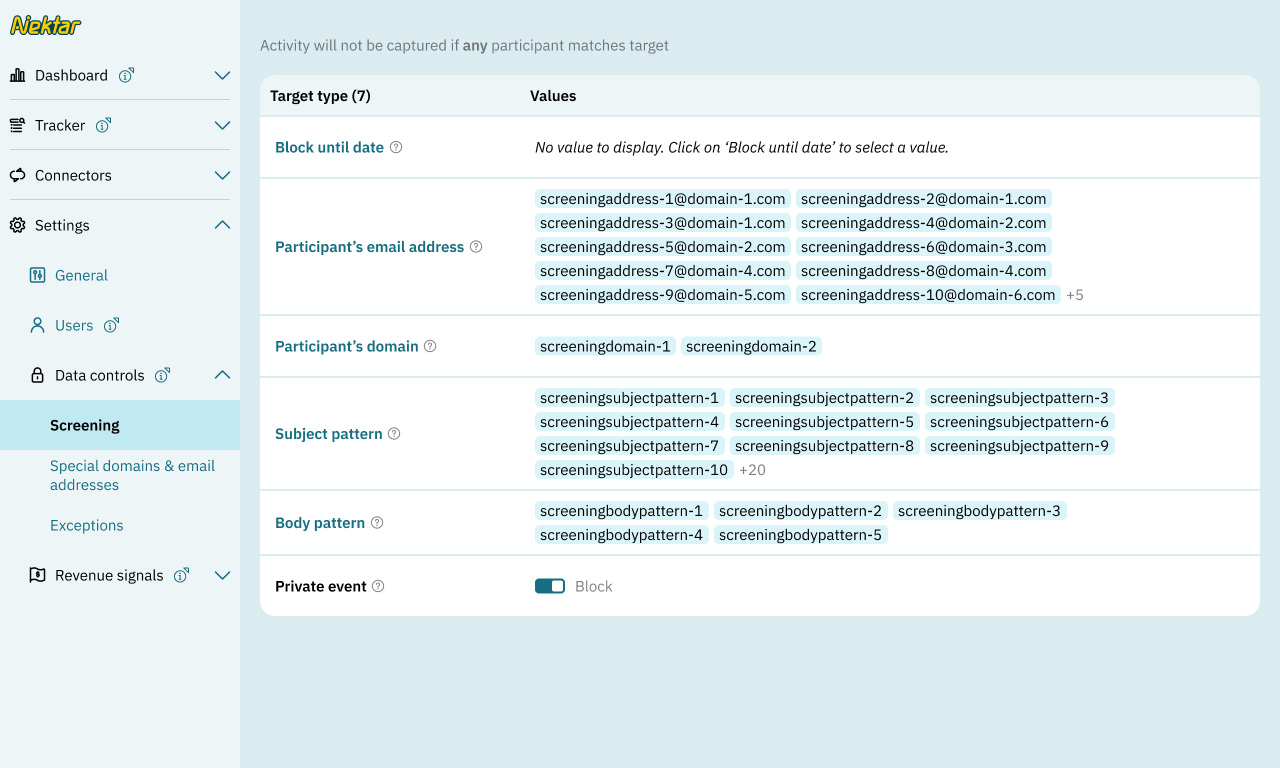
You may additionally block emails and events that you do not wish Nektar to write in your Salesforce. You can do so under these categories.
- Block until date — all events with the start date and email sent until this date will be blocked by Nektar
- Private calendar events — when toggled on, these events will not be read by Nektar
- Email addresses — activity will not be captured by Nektar if any participant matches these email addresses
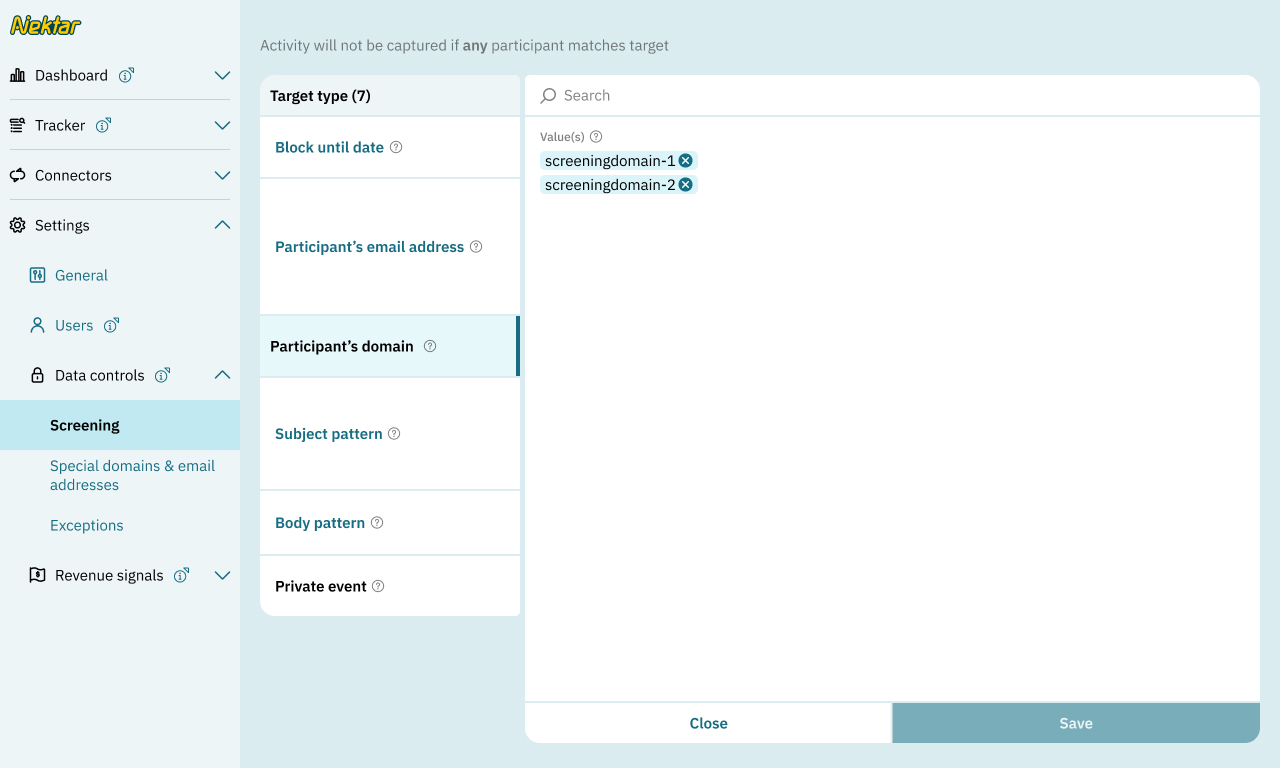
- Email domains — activity will not be captured by Nektar if any participant matches these email domains
- Subject line keywords — emails or events with subject line containing any of these words will not be captured
-
Body pattern keywords — emails whose body contains any of these words will not be captured
Rule Behaviour for Subject line and Body pattern keyword matching
- Case insensitive matching — Matching is not case sensitive. For example, if
confidentialis blocked, Nektar will also blockConfidentialandCONFIDENTIAL. - Exact phrase matching for multi-word patterns — Multi-word patterns are treated as exact phrases, not as individual words. Example: If
Do not writeis blocked, the system will only block messages where this entire phrase appears together. - Special characters are treated literally — Words containing special characters are matched exactly as written. Example: If
Accepted:is blocked, Nektar will blockaccepted:andAccepted:, but notAcceptedwithout the colon. - Line Breaks, Spaces, Underscores, and Numbers — These are accepted as valid prefixes or suffixes to the blocked words. Example: If
NDAis blocked, the system will also blockNDA2,NDA-attached, andNDA_attached.
- Case insensitive matching — Matching is not case sensitive. For example, if
Suggestions for what you should consider to screen
- Block human resources and legal staff and vendors
- Block senior leadership, board members and investors
- Block tools that send payslips and performance appraisals
Special domains and email addresses
Nektar screens out emails or events where all participants are internal to your company, tools (e.g. notifications, conference rooms, meeting recorders), distribution lists (e.g. sales@, support@) or using personal email addresses (e.g. @gmail.com).
You may configure additional email addresses and domains as ignored — i.e. treated like internal for activity screening purposes.
Suggestions for what you should consider to add here
- Ignore partners and resellers that participate in sales conversations
Note: If an activity passes screening, all its participants are stored and processed in Nektar — including ignored and internal ones.
Note: This section describes read rules. Activities and contacts must also pass write rules to be written to Salesforce.
Write rules
Nektar only creates records that can be linked to existing Salesforce records.
- Contacts must link to an existing account or contact via a shared, non-public domain name. Consequently, Nektar will never create contacts with public domains (such as
@gmail.com). - Activities must link to valid contacts or leads. Contacts created from participants found in the same email or event qualify.
- Opportunity-Contact Roles are created for all contacts that have participated in activities linked to the opportunity.
Additionally, write rules can be configured to further restrict which Activities, Contacts and Opportunity Contact Roles are created.
Write rules are in beta; contact us to implement them.